Adding Operator Connect SIP Connections
If you configured 'Advanced Settings' when enabling the Operator Connect license, you added an OC SIP Connection with an SBC IP Group and mapped a Calling Profile template to an SBC Proxy Set. This option allows you to configure additional OC SIP connections and map them to different Calling Profile Templates and Proxy Sets and to upload numbers to these connections (see Load DIDs to Managed Service). Calls made by tenant users are applied with the mapped Calling Profile template, routed through the configured Proxy Set and applied with the IP Group configuration. For example, when calls are routed through Carrier ABC, IP Group A is configured with enhanced security settings.
| ➢ | Do the following: |
| 1. | For OC Essentials services: In the Multitenant portal All Services page, click the SysAdmin link for the relevant Operator Connect service, and then in the Service portal Navigation pane, select Configuration > SIP Connections. |
| 2. | For OC Essentials Plus and OC Pro services, do one of the following: |
| ● | In the Multitenant portal All Services page, click the SysAdmin link for the relevant Operator Connect service, and then in the Service portal Navigation pane, select Configuration > SIP Connections. |
| ● |
|
For services added with an IP Group configured (Advanced Configuration), a screen similar to the following is displayed with the table below it describing the corresponding parameters in this screen.
SIP Connections with Advanced Configuration
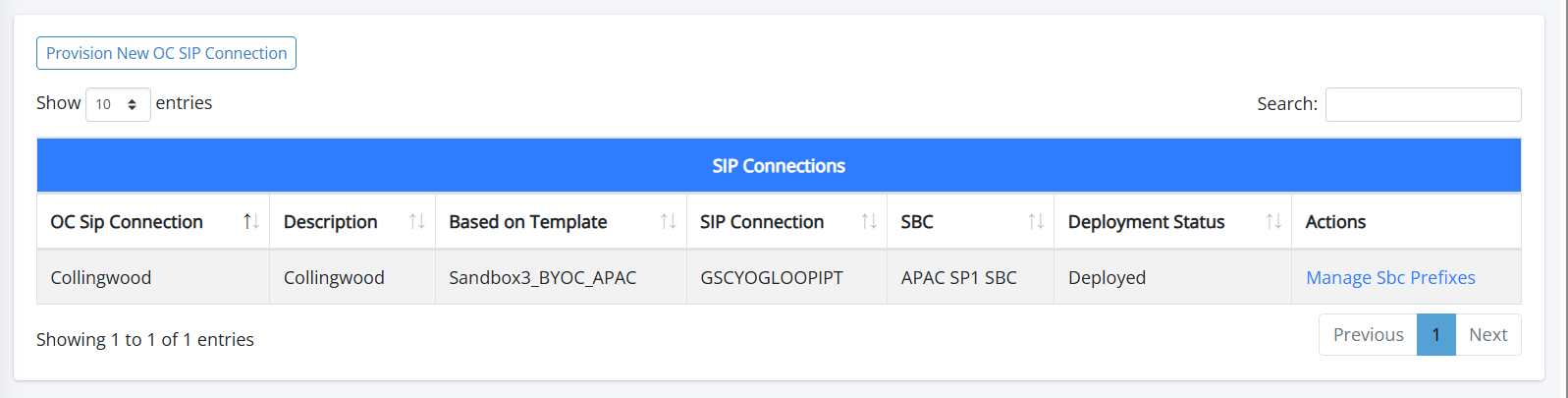
SIP Connections-Advanced Configuration
|
Parameter |
Description |
|||||||||||||||||||||||||||
|---|---|---|---|---|---|---|---|---|---|---|---|---|---|---|---|---|---|---|---|---|---|---|---|---|---|---|---|---|
|
OC SIP Connection |
The name of the Operator Connect SIP Connection that is attached to a specific Calling Profile template and Proxy Set. A Calling Profile template can be attached to single OC SIP Connection, and a Proxy Set can be attached to multiple OC SIP Connections. |
|||||||||||||||||||||||||||
|
Description |
Free text description. |
|||||||||||||||||||||||||||
|
Based on Template |
From the drop-down list, choose the Calling Profile template to attach to the SIP connection. The template is applied when routing the calls of the tenant users
|
|||||||||||||||||||||||||||
|
SIP Connection |
The name of the SIP Connection that is created on Live Platform and on the SBC device. |
|||||||||||||||||||||||||||
|
SBC |
The name of the SBC device where the SIP Connection is configured. |
|||||||||||||||||||||||||||
|
Deployment Status |
Indicates the status of the SIP Connection deployment on the SBC device:
|
|||||||||||||||||||||||||||
|
Actions |
For services added without an IP Group configured, a screen similar to the following is displayed with the table below it describing the corresponding parameters in this screen.
SIP Connections without Advanced Configuration
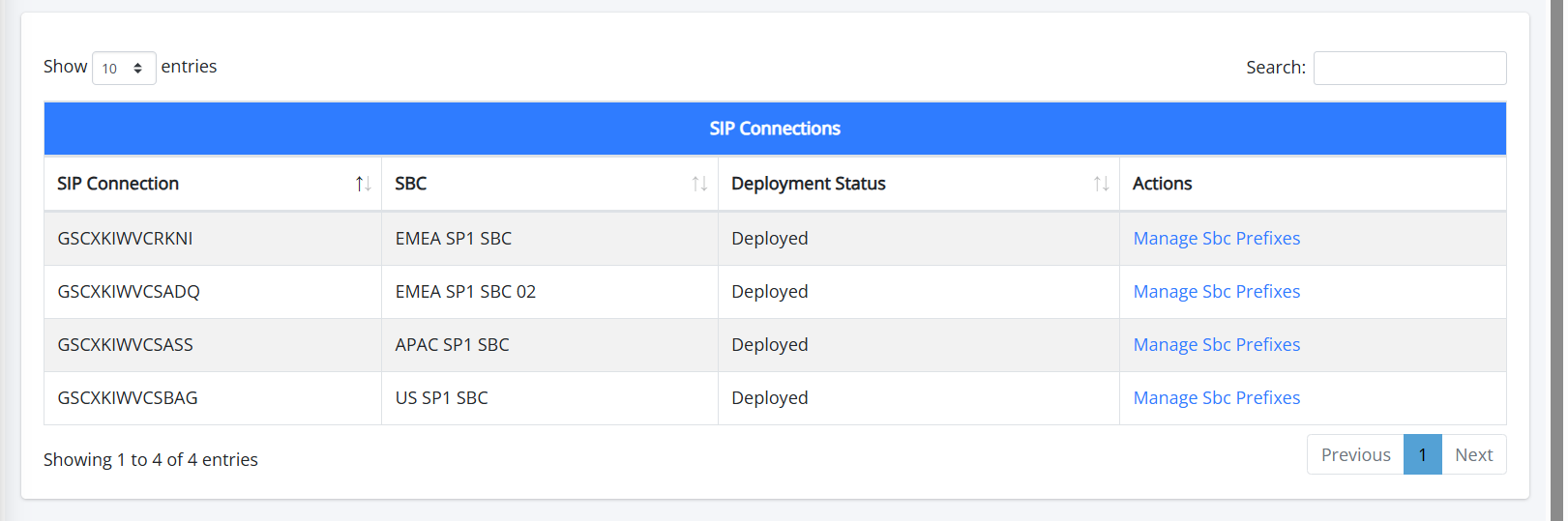
SIP Connections without Advanced Configuration
|
Parameter |
Description |
|||||||||||||||||||||||||||
|---|---|---|---|---|---|---|---|---|---|---|---|---|---|---|---|---|---|---|---|---|---|---|---|---|---|---|---|---|
|
SIP Connection |
The name of the SIP Connection that is created on Live Platform and on the SBC device. |
|||||||||||||||||||||||||||
|
SBC |
The name of the SBC device where the SIP Connection is configured. |
|||||||||||||||||||||||||||
|
Deployment Status |
Indicates the status of the SIP Connection deployment on the SBC device:
|
|||||||||||||||||||||||||||
|
Manage SBC Prefixes |
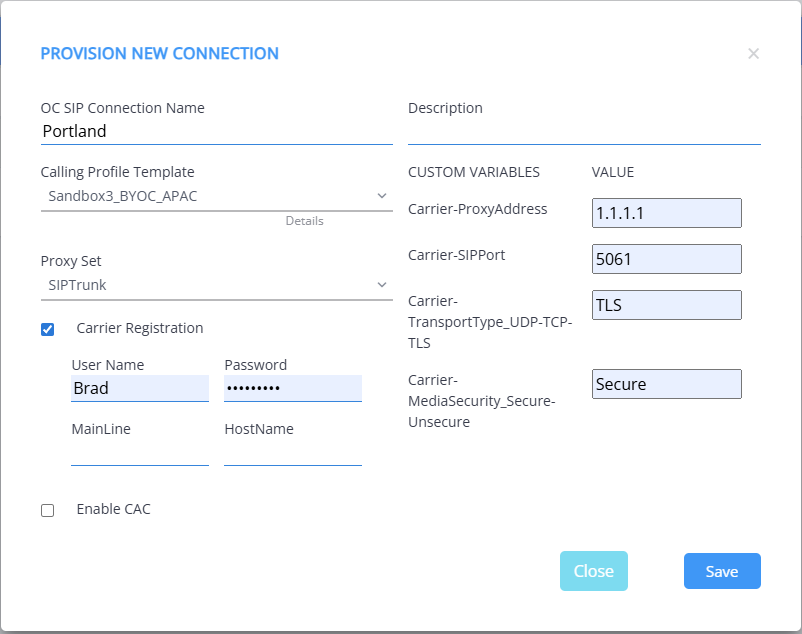
| 3. | Click Provision New OC SIP Connection to add a new SIP Connection to your service. |
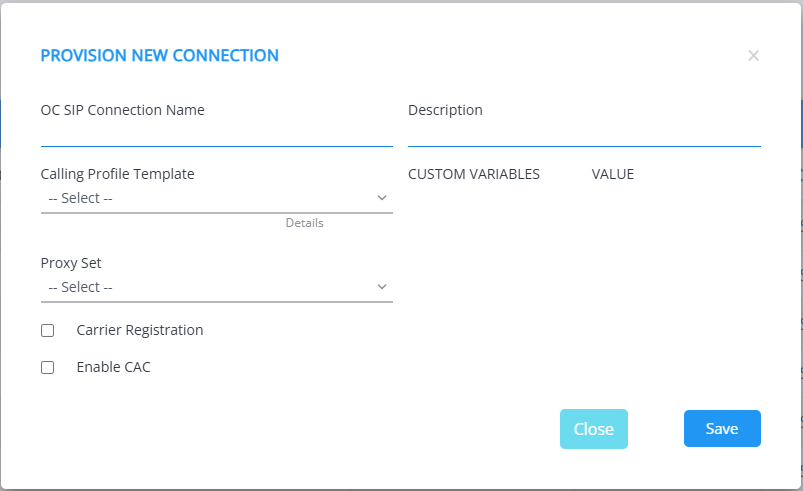
| 4. | Configure parameters according to the table below and then click Save. |
|
Parameter |
Description |
||||||||||||
|---|---|---|---|---|---|---|---|---|---|---|---|---|---|
|
OC SIP Connection |
The name of the OC SIP Connection. |
||||||||||||
|
Calling Profile Template |
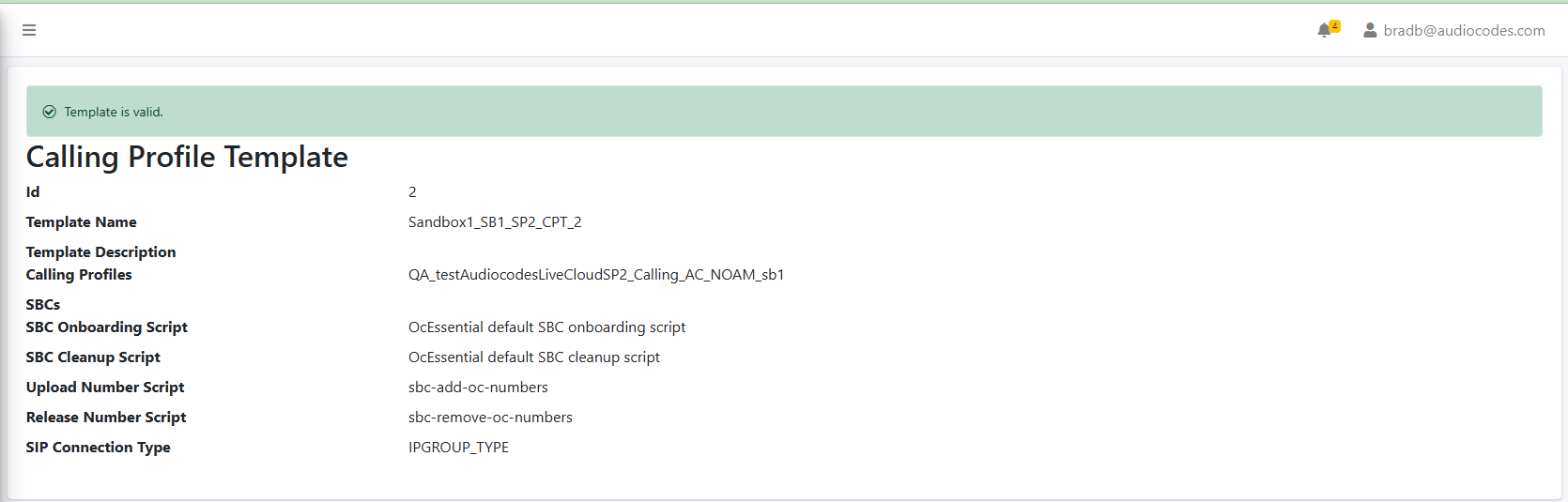
From the drop-down list, choose the Calling Profile Template to attach to the connection. Click Details to view the detailed configuration of the Calling Profile Template. See Calling Profile Provisioning Templates.
This parameter is only displayed for services added with IP Groups. |
||||||||||||
|
Proxy Set |
From the drop-down list, choose the SBC Proxy Set to map to the Calling Profile template. You can map the same or different Proxy Sets to each template. This parameter is only displayed for services added with IP Groups. |
||||||||||||
|
Carrier Registration |
Select this option to perform SIP Account Registration for the Carrier trunk:
|
||||||||||||
|
Enable CAC |
Enable Call Admission Control (CAC). From the drop-down list, select the desired preconfigured CAC Profile call session number template. |
||||||||||||
|
Customer variables |
Configure Customer variables that have been defined in the script. For example, Carrier parameters as shown in the figure below.
|